There are times when your system is air-gapped, or there is not internet access. They system can still be upgraded using the below manual process.
- Go to the url https://logicvein.com/customer-download-login/
- get the password from tech support (support@logicvein.com)
- Click on “Virtual Appliance Update” under the heading “Full *.ENC file for use in Admin Dashboard”
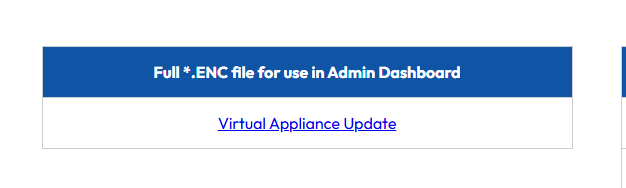
- This file will download to your PC,
- Once downloaded, you will need to extract the below file from the zip file:
Software_package-lvi-core-YYYY.x.x-xxxxxxxxxx-full.enc (there will be numbers replacing the YYYY and x’s)
- Go to your netLD URL
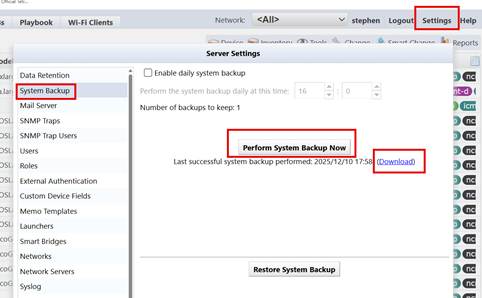
- In the top right corner, got to “settings”
- In the popup, select System backup
- Click on “Perform System Backup Now”
- Once completed, click on “Download”. This will copy the current backup file to your pc
- Once completed then go to the url https://[netLD ip address]/admin
- If you know the API token, login, and then go to section "continue"
- If not then click on “API token Setup” and create a new token
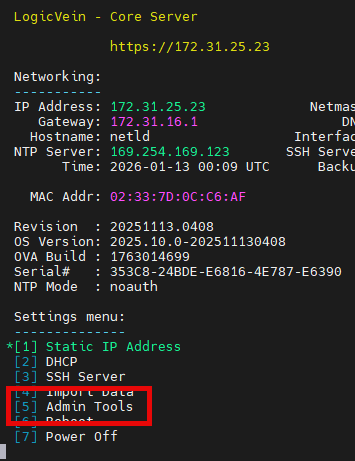
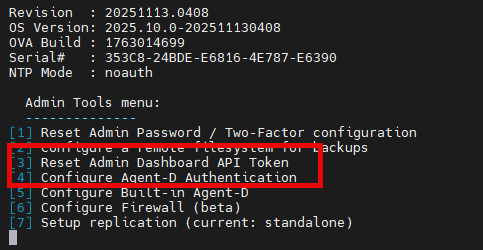
If this fails, then there is already a token for this, and you will need to go to the VM console and reset the api token select:
Option 5 – admin tools
Then Option 3 – Reset Admin Dashboard API Token
- The API token is security sensitive, so common words or repeating values are not allowed….try something like 13579!#%&(
SECTION CONTINUE
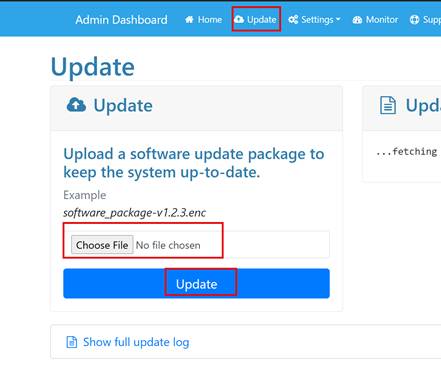
- Once in the API dashboard, at the top of the page, click on “Update”
- Click on “Choose File” and select the *.ENC file that you downloaded from the download page
- Click update
- The update process will take between 5-10 minutes to run/update, then will reboot the system. You will know it is processing as across the top it will say “uploading”, then “updating”
- Once the system comes back online, go to main netLD GUI, go to the top right corner and select “Help” then “About” you should see the current revision.
- If you do not see this please let us know. Click on the “Send Log” in the bottom right corner of the “about” popup, click “save”, this will download the support.zip file to your pc…please email that file to us at support@logicvein.com
Was this article helpful?
That’s Great!
Thank you for your feedback
Sorry! We couldn't be helpful
Thank you for your feedback
Feedback sent
We appreciate your effort and will try to fix the article